Description
Captures the RGB values of the pixel located under your mouse pointer and displays it as a popup window.
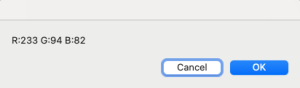
It is required that you give this app Screen Recording permission in order for it to capture the correct pixel color value.
Please be assured that no full screen recording is being issued from this app. All that is recorded/captured is the one pixel color under your mouse pointer.
Important: The first time you run the app, macOS will show two permission prompts. You must select or allow both. If you don’t, they likely won’t appear again, and the app may not work correctly without manual fixes later.
- When you run the app the first time you should see a popup that will prompt you to open Privacy & Security / Screen Recording where you will need to enable the button/slider/checkbox for GetPixelColor. This will require Administrator privileges.
- The second time you run the app you will get a stand-alone popup where you need to click “Allow” for screen recording. Again, no full-screen recording is taking place even though the prompt seems to indicate that. It doesn’t know what or how much recording is taking place, just that some amount is. I promise you all this app is reading is the one pixel under your mouse pointer.
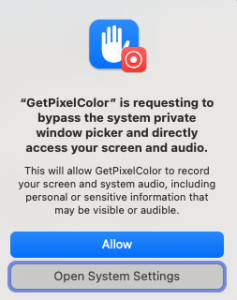
If you did not allow the app to have these two permissions and are having difficulty seeing the correct RGB values, please see the FAQ section for help restoring these permissions.